Updating Your Security Settings
🔒
Updating Your Security Settings
Log in to the portal. If you don't know how to log in can refer article:
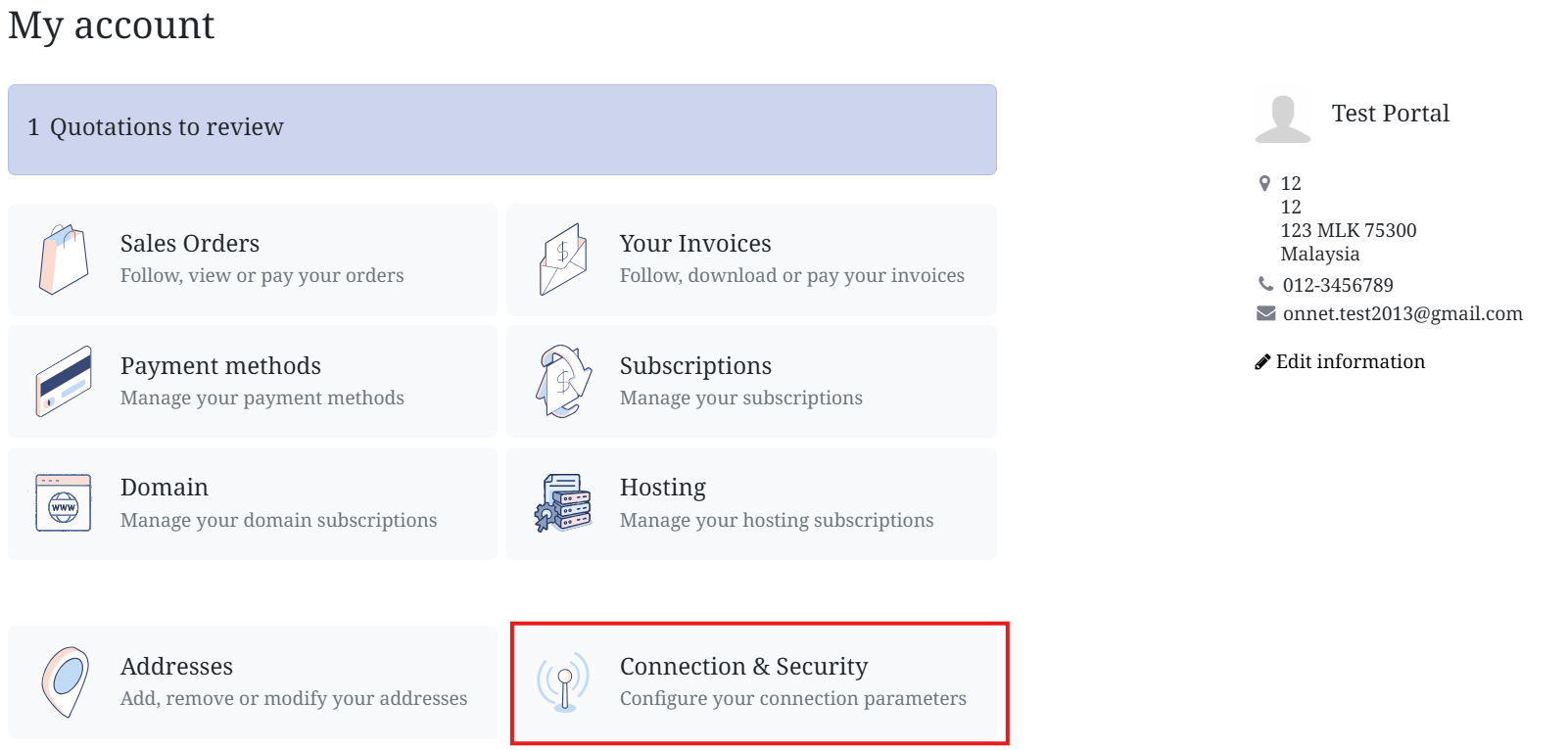
From the My Account page, scroll down and click Connection & Security (highlighted in the screenshot).
Change Your Password
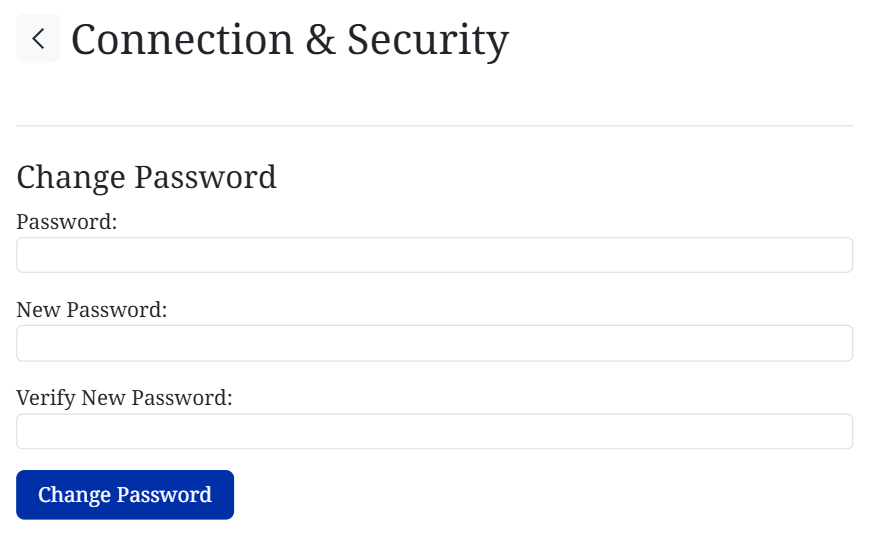
1. Enter your current password.
2. Type a new password (use a strong mix of letters, numbers, and symbols).
3. Confirm by retyping it in Verify New Password.
4. Click Change Password to apply.
💡 Tip: A strong password keeps your account safe. Consider using a password manager to generate one.
Enable Two-Factor Authentication (2FA)
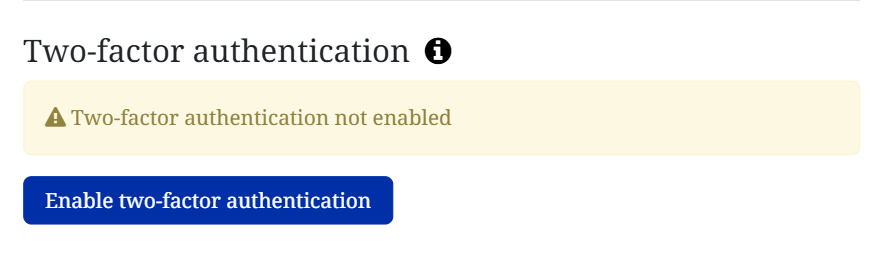
Two-Factor Authentication adds an extra layer of security.
- Click Enable two-factor authentication.
- Follow the instructions to link your authenticator app (Google Authenticator, Authy, etc.).
- Enter the verification code generated by your app to finish setup.
Log Out from All Devices
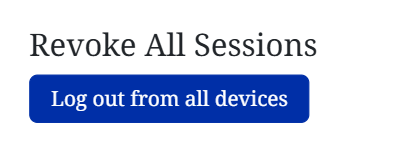
If you’ve logged in on multiple devices (or suspect unauthorized access):
- Click Log out from all devices.
- You’ll be signed out everywhere and need to log back in manually.