Search Bar
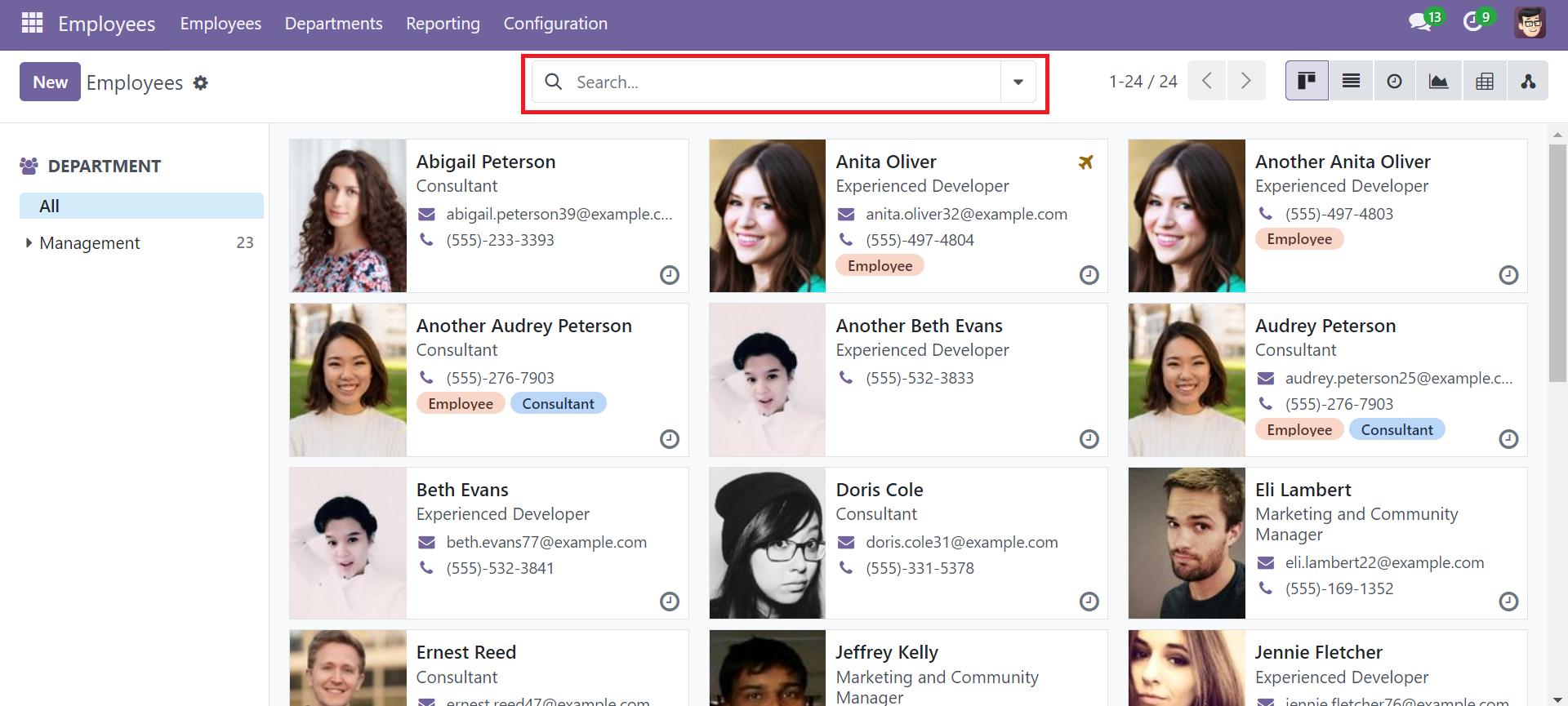
In OnCloud system, most of the view that showing multiple records (List & Kanban views) will have a search bar located on the middle top of the screen.
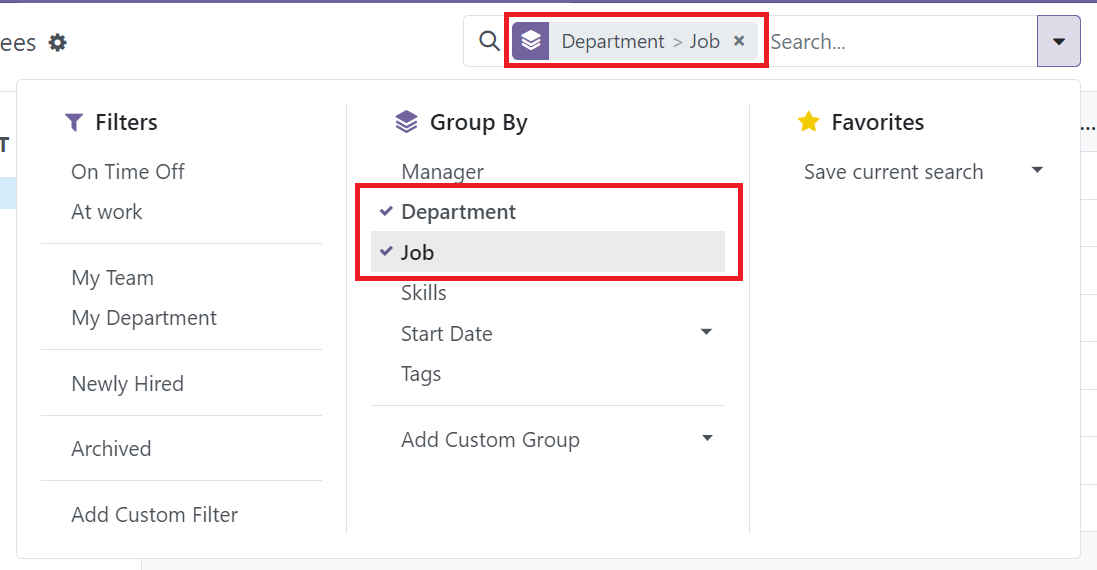
The presence of the search bar help us to search the records quickly, filter out unwanted records and grouping records by specific information with preset filters and group-by terms.
Searching
Direct Search
To search the records directly, simply type any keywords in the search bar and click enter. The records will be searched according to keyword. The searching will be applied in searching default information only.
Specific search
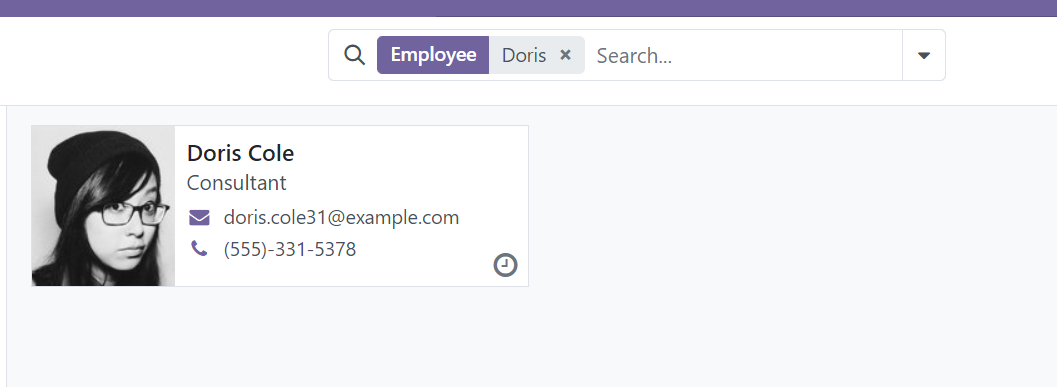
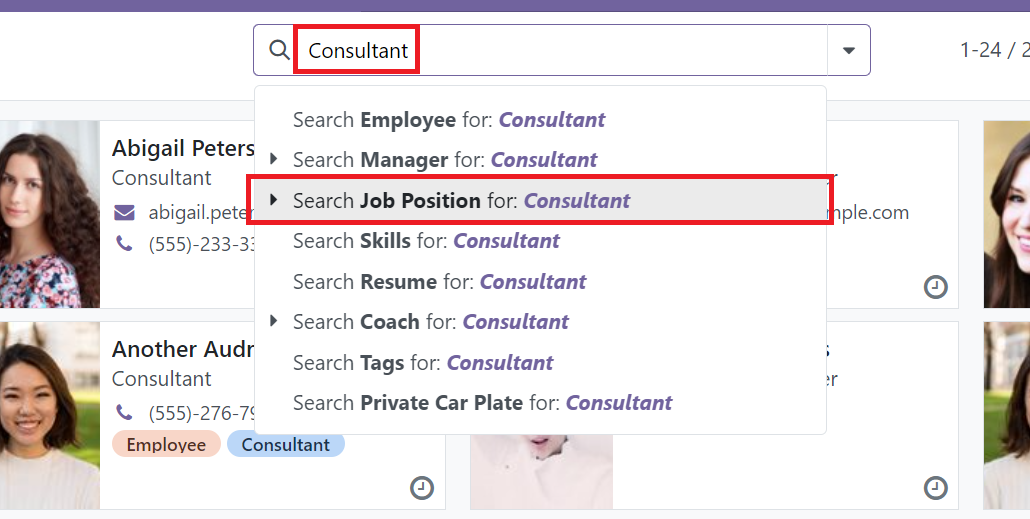
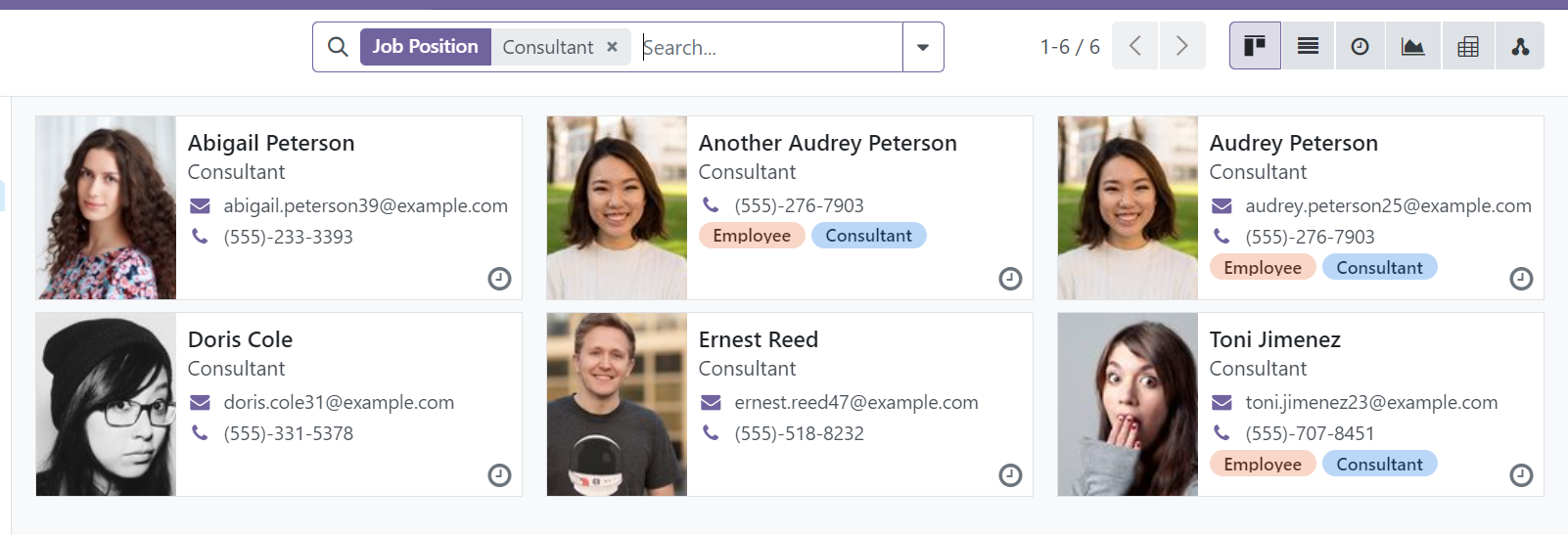
In order to search records with the keyword located in other fields, simply type the keyword in the search bar. Then, select the field would like to search.
Filtering
Apply Preset Filters
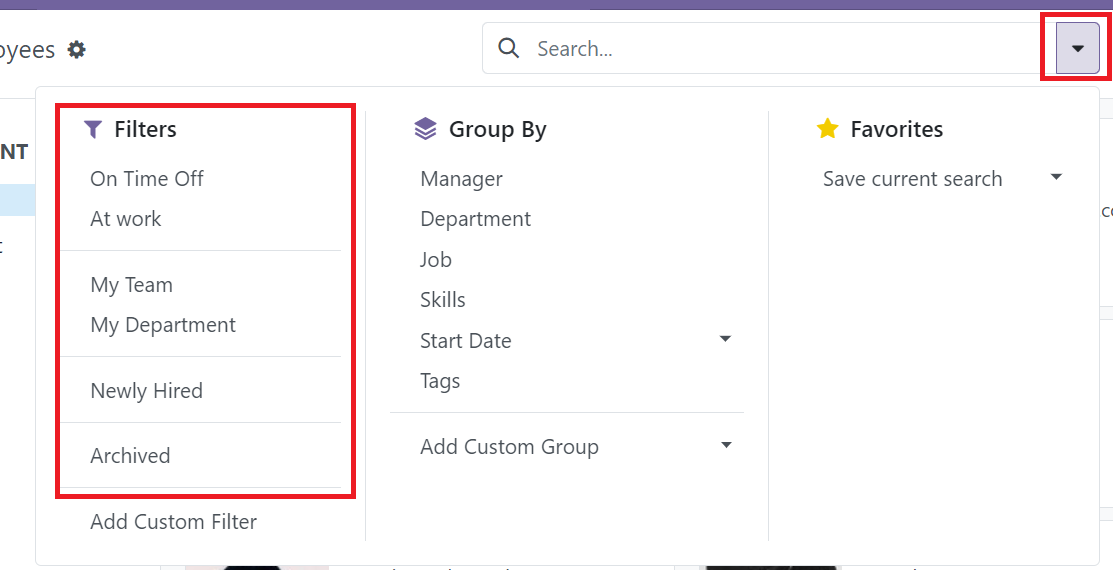
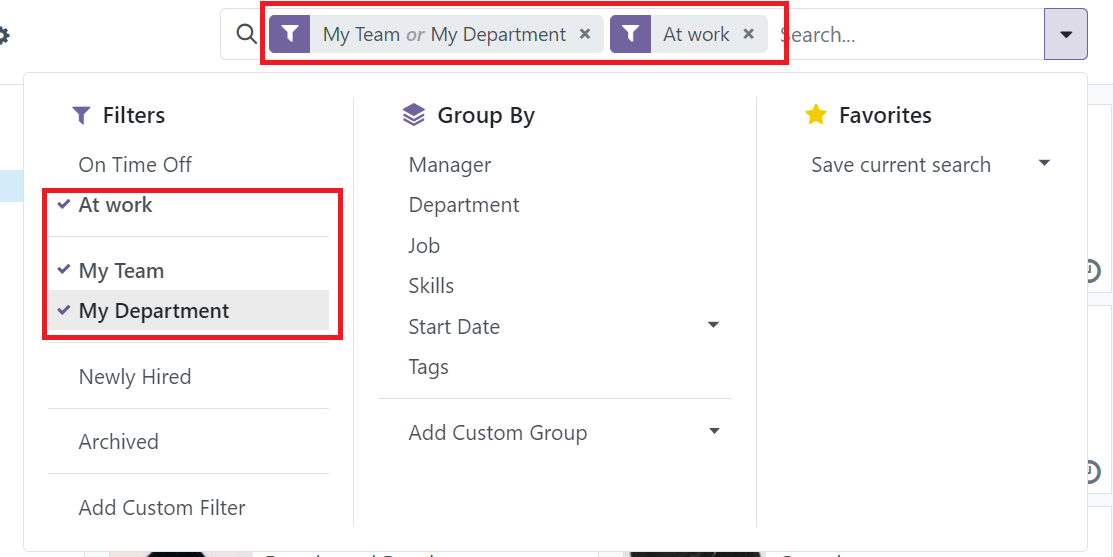
To filter out some records, click the expand button at the search bar. Then, select the preset filter that would like to filter.
Multiple filter
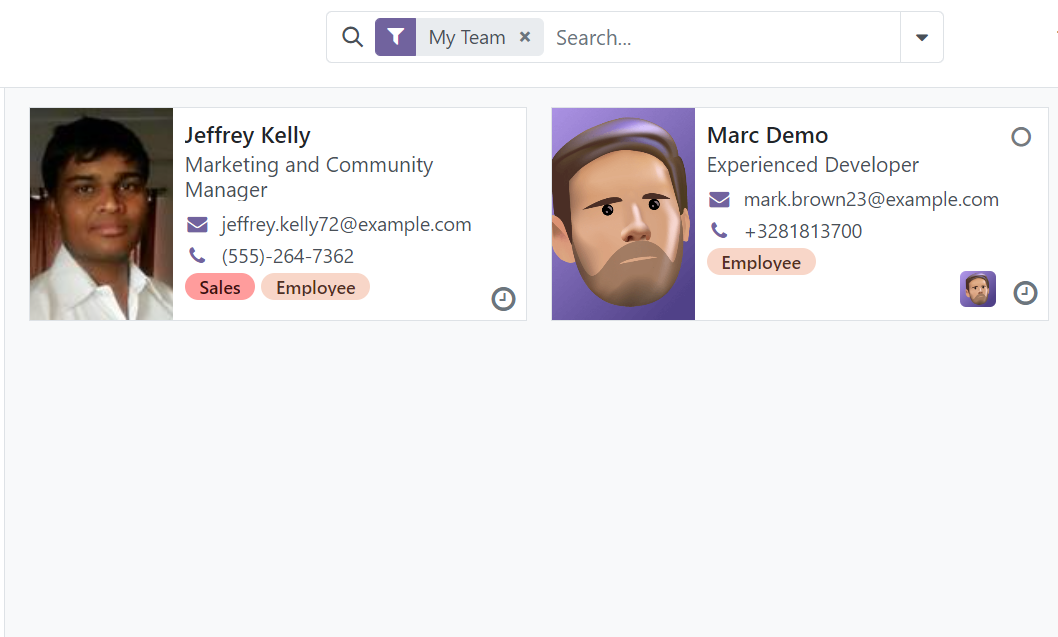
In OnCloud system, the search bar also supports multiple filtering. Just simply select more than one filters to achieve that.
Grouping
Grouping in Kanban View
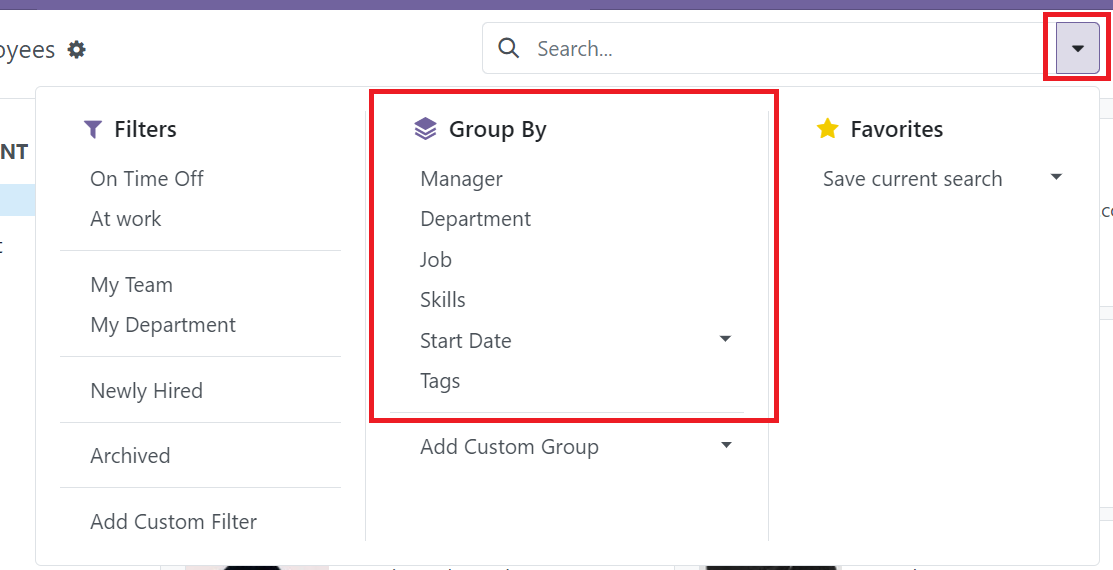
In Kanban view, some of them will have default grouping to enable organize records easier. To apply grouping, click the expand bar in the search bar. Then, select the preset group-by term for grouping.
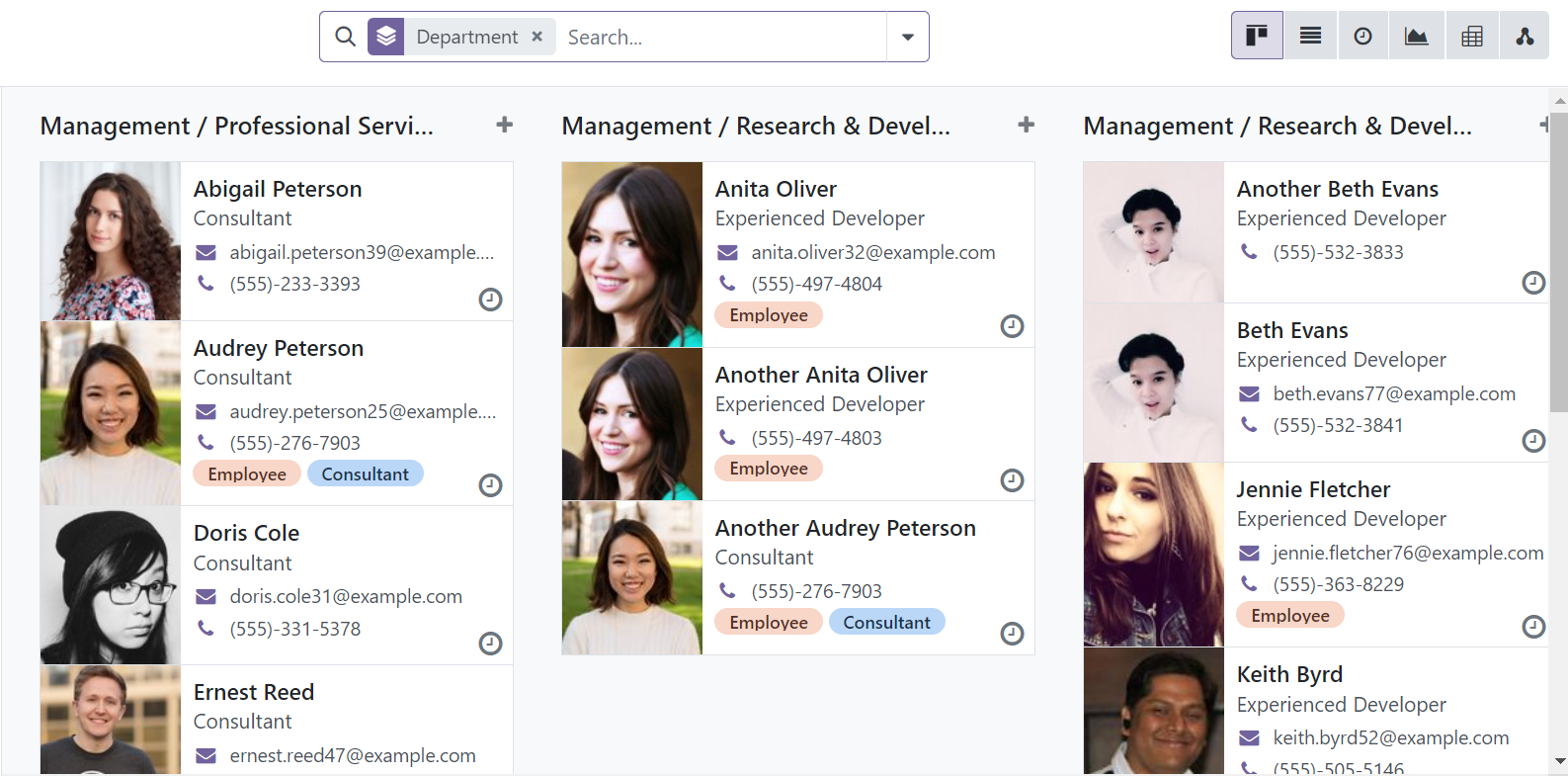
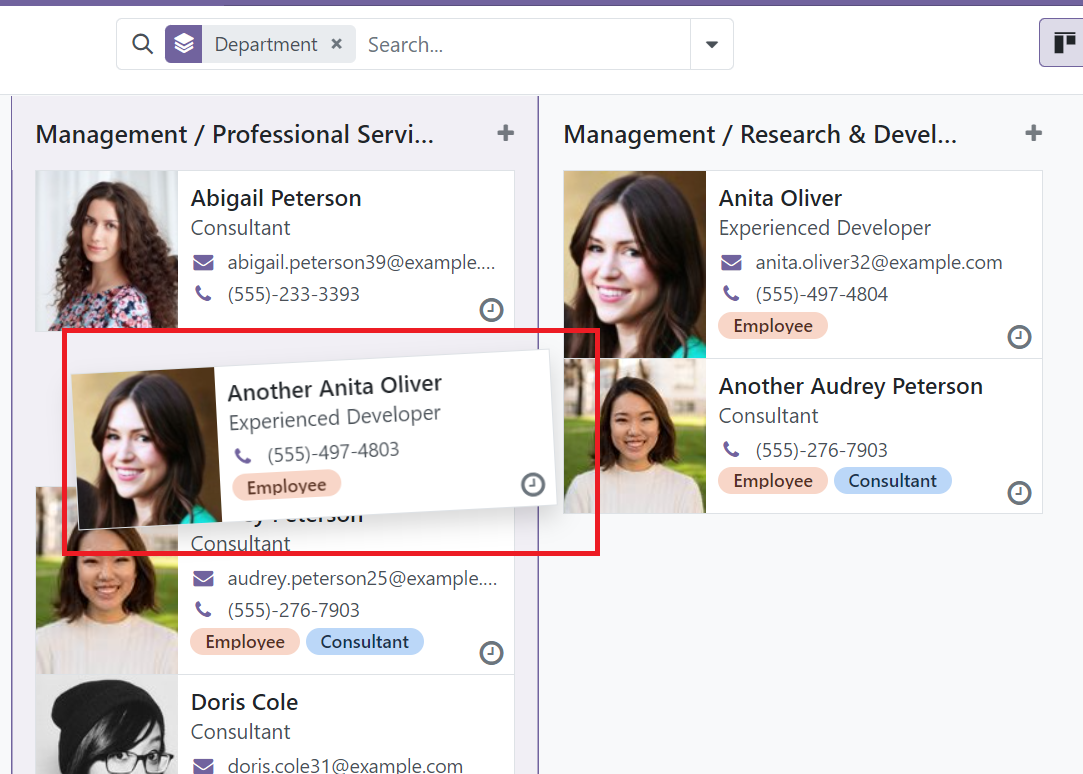
When Kanban view is grouped, the records can perform drag & drop feature to change the group. After dragging, the records will be updated together also.
Grouping in List View
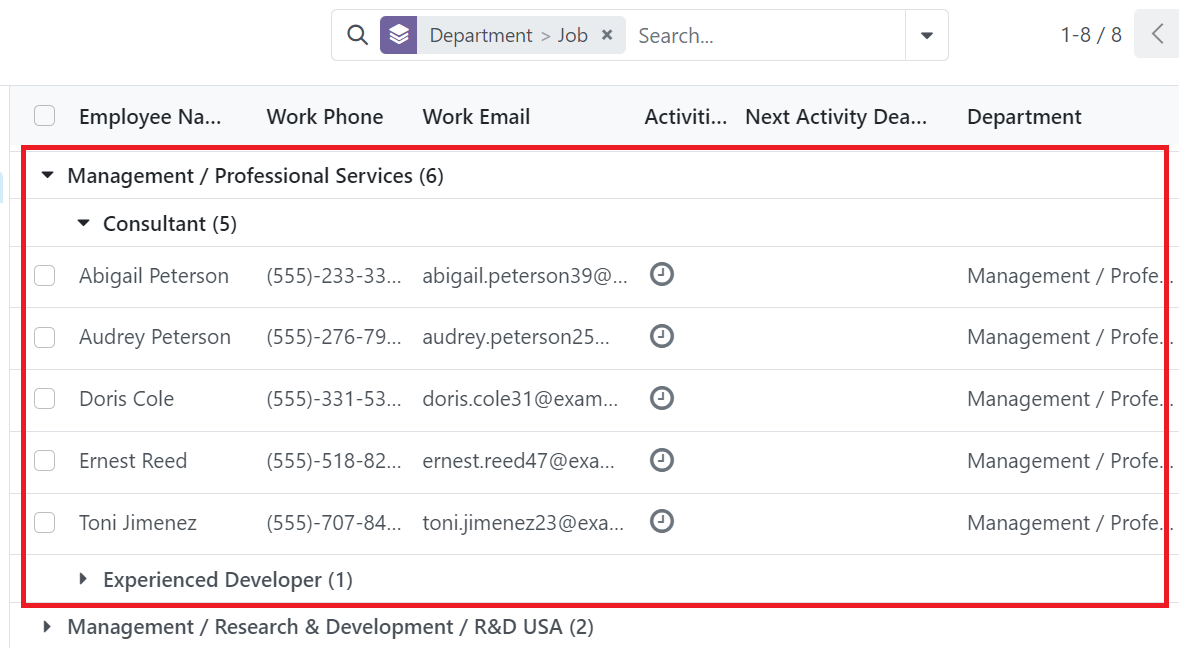
In List view, the records will be grouped and need to expand the group to view the records. To apply grouping, click the expand bar in the search bar. Then, select the preset group-by term for grouping.
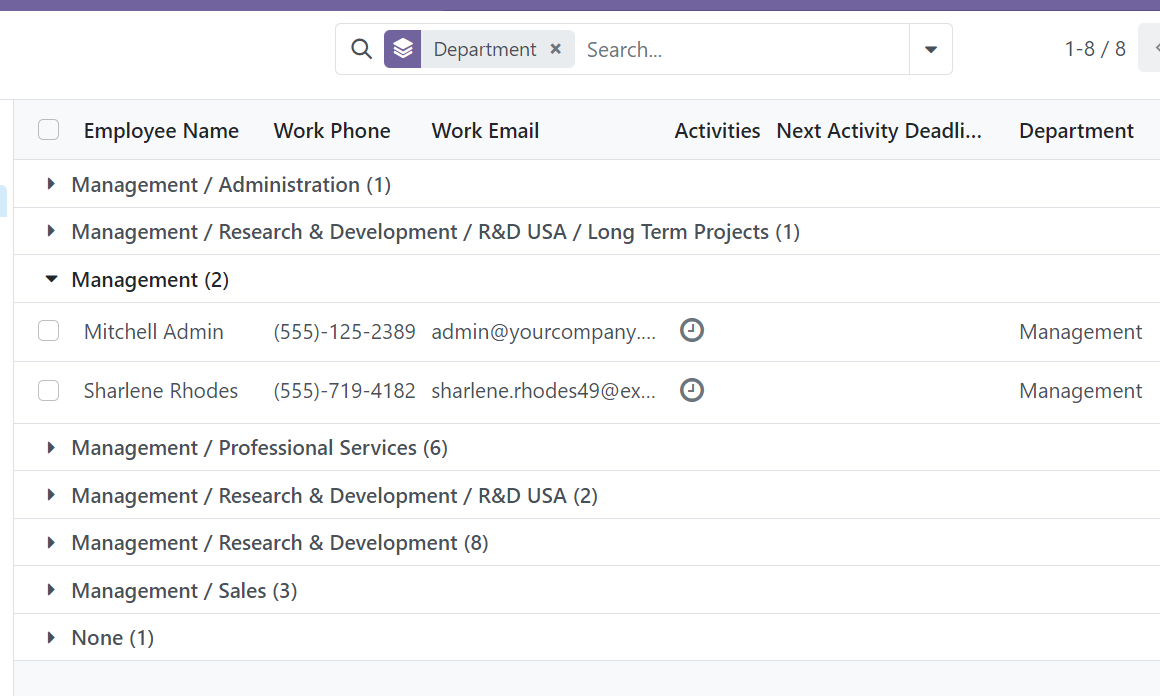
List view also supports multiple layer grouping. To achieve that, select the grouping layer from top to bottom. The grouped list view can be expanded with multiple layers.